Crisp, live video
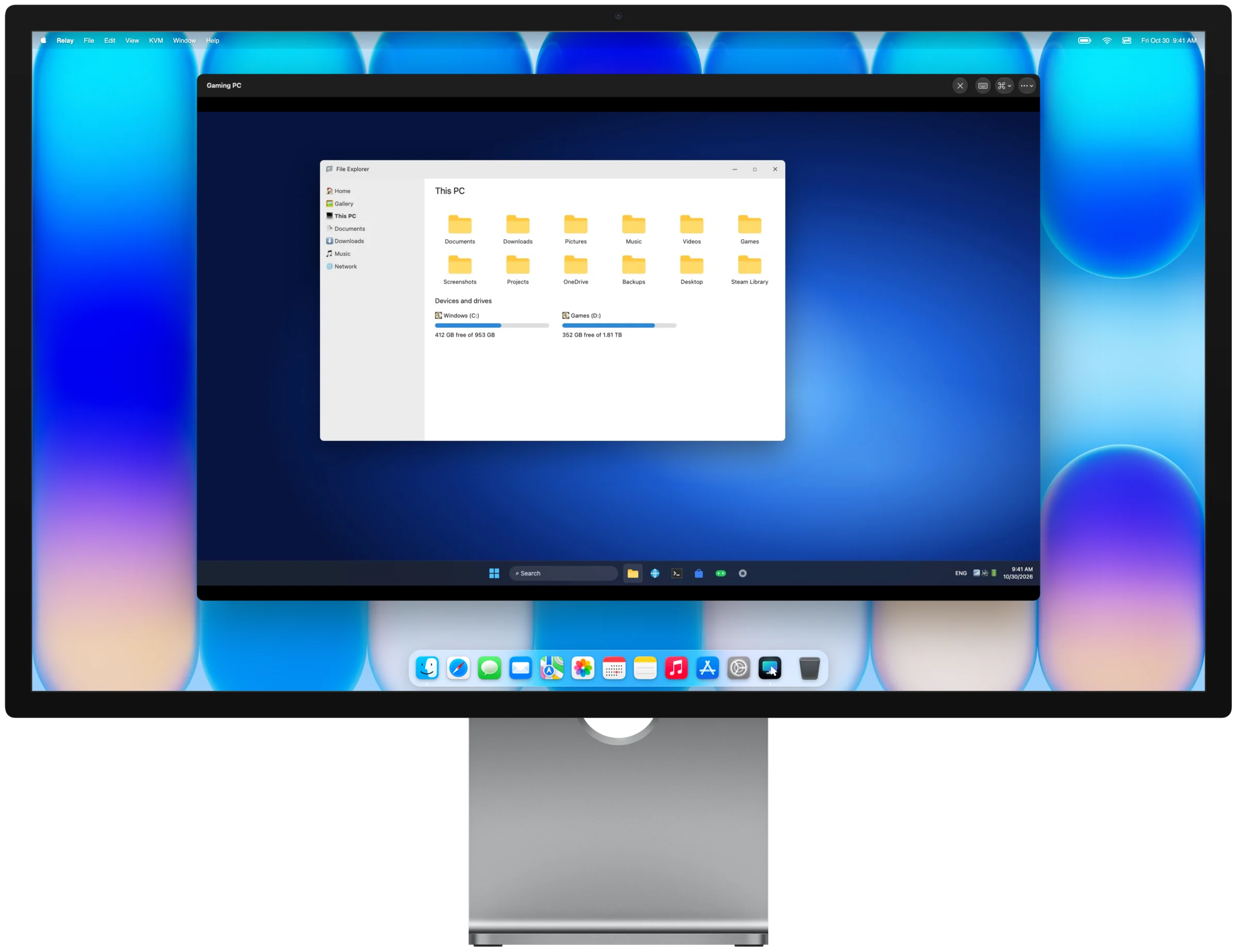
WebRTC on your network for the lowest latency, H.264 over WebSocket through tunnels. Pinch to zoom, actual pixels, picture in picture.

Relay puts the screen, keyboard, mouse and power button of every computer behind your GL.iNet KVM in your pocket. From the couch, the office, or the other side of the world.
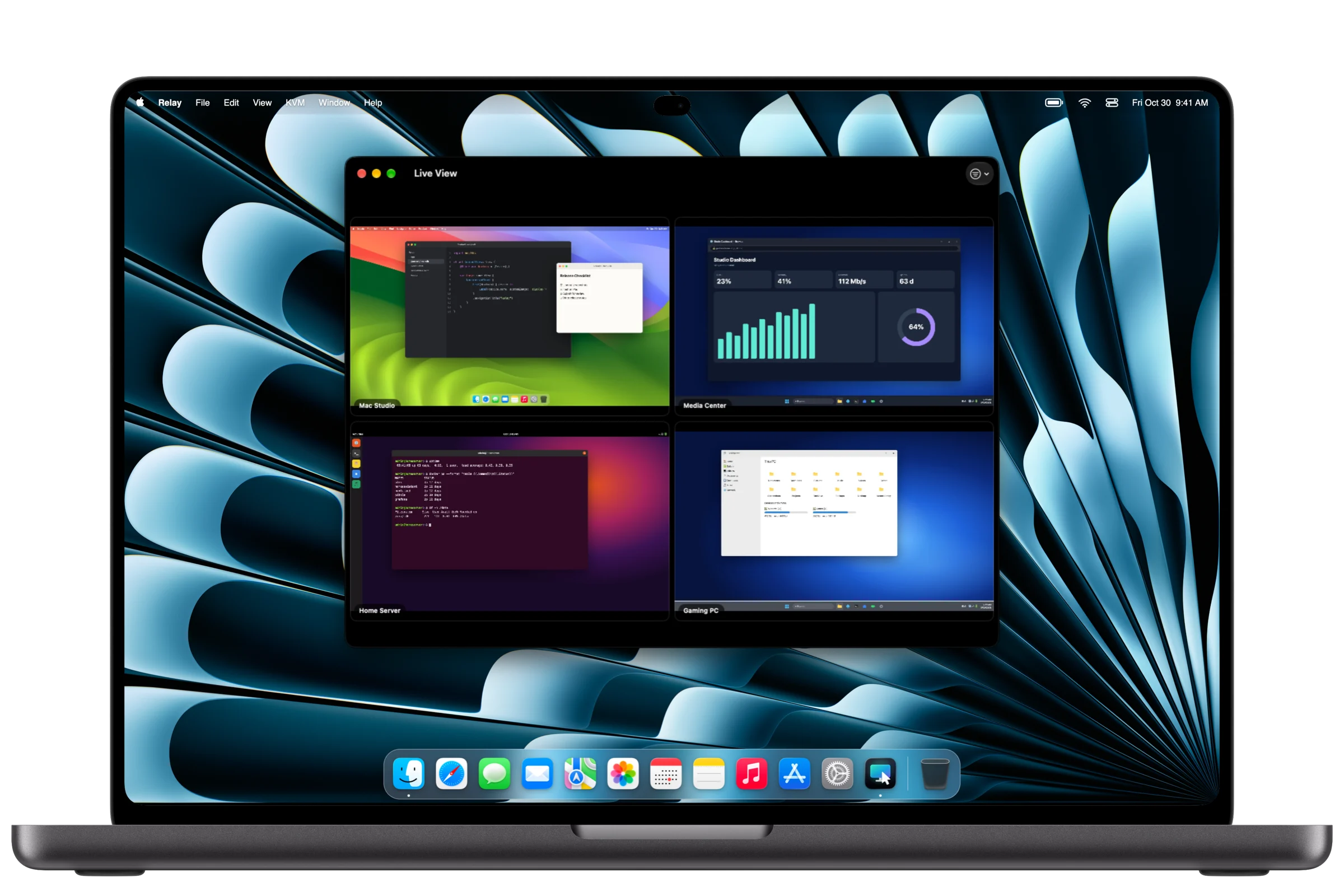
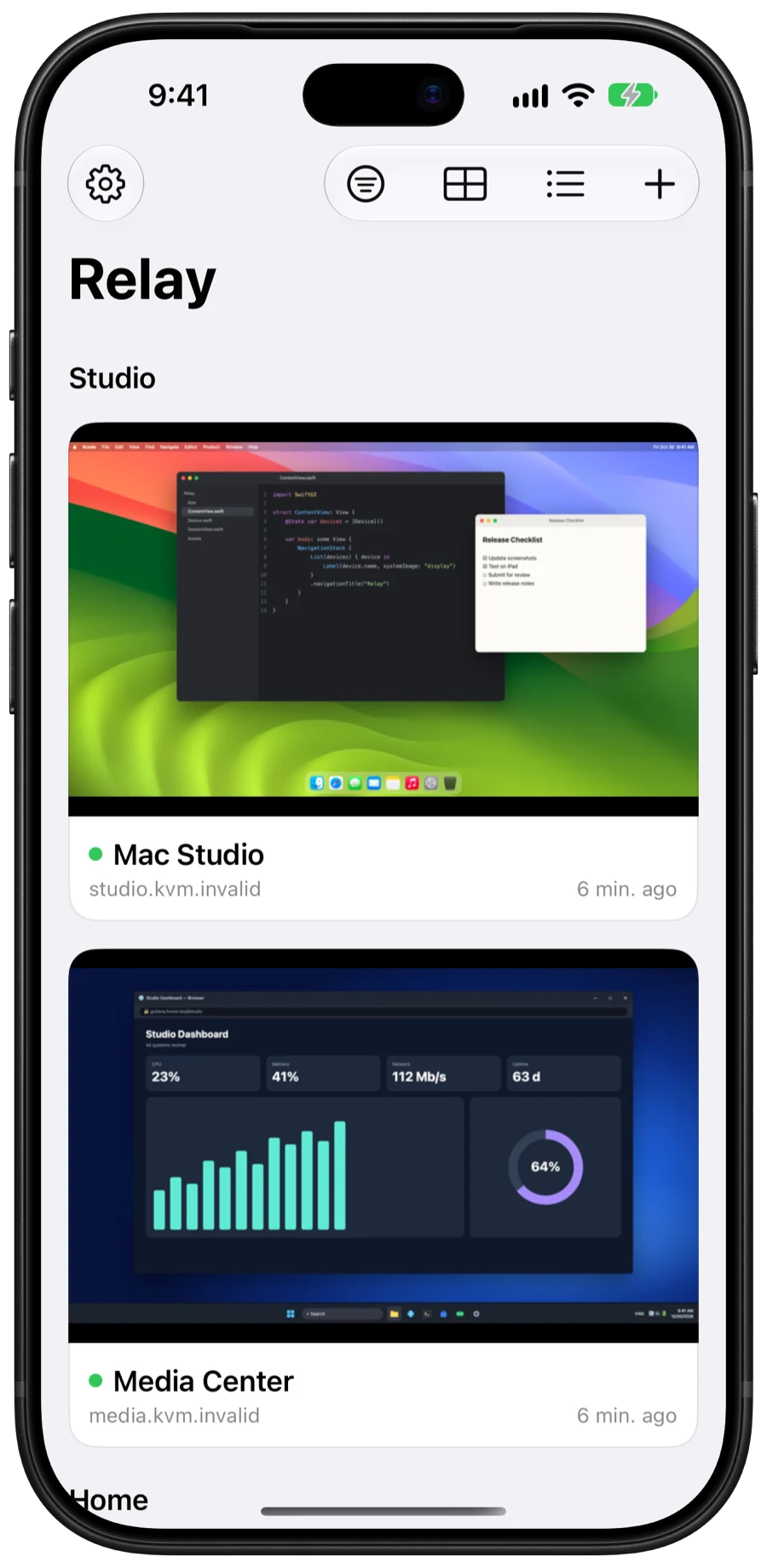
Low-latency video with audio, a real keyboard and mouse, and the power button, from a native app built for each of your devices.
WebRTC on your network for the lowest latency, H.264 over WebSocket through tunnels. Pinch to zoom, actual pixels, picture in picture.
Hardware keyboards pass straight through, ⌘ becomes Ctrl on PCs, and touch, trackpad and pointer-lock modes fit every device.
Press power or reset through the ATX board, wake it with Wake-on-LAN, or tap the button with a Fingerbot.
Upload an ISO from Files, or have the KVM download it from a link, then boot the computer from it. Reinstall an OS from your phone.
Ctrl-Alt-Delete, copy and paste, and the right shortcuts for Windows, macOS, Linux, Android and iOS. Record your own multi-step macros.
Get a notification when a KVM stops responding, a computer loses its signal, or a crash or error appears on screen.
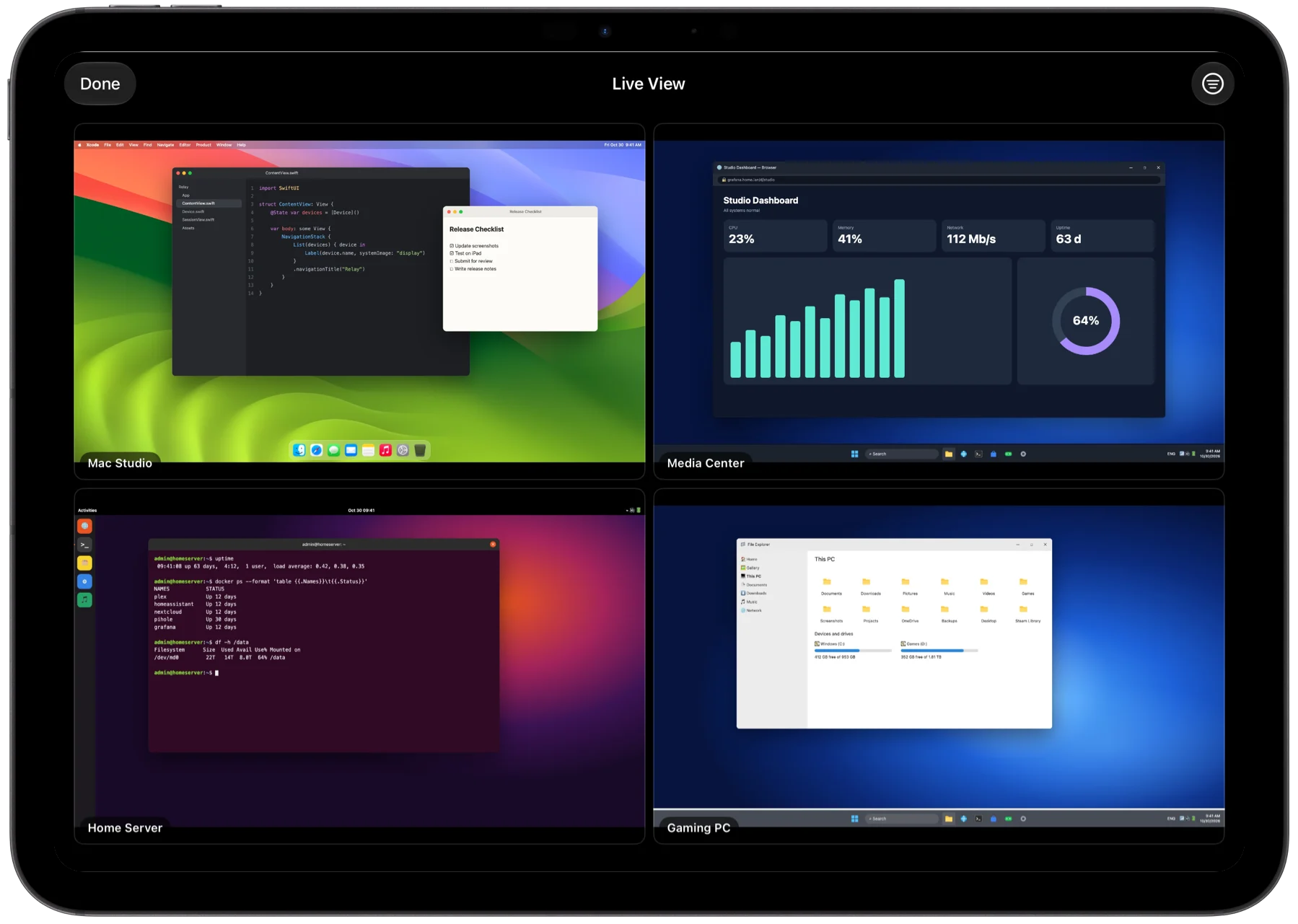
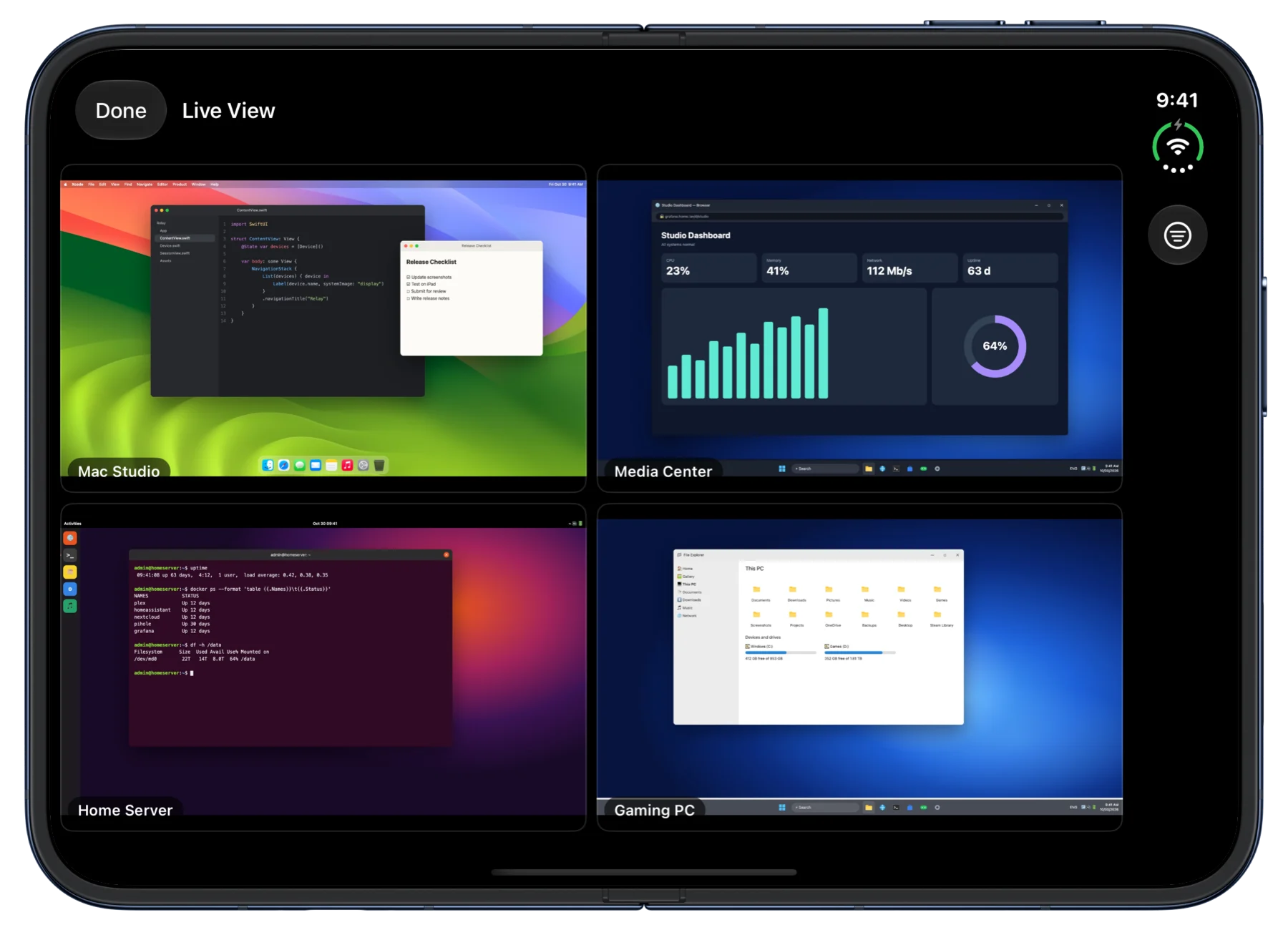
Watch all your computers live, side by side. Tap one to take control.
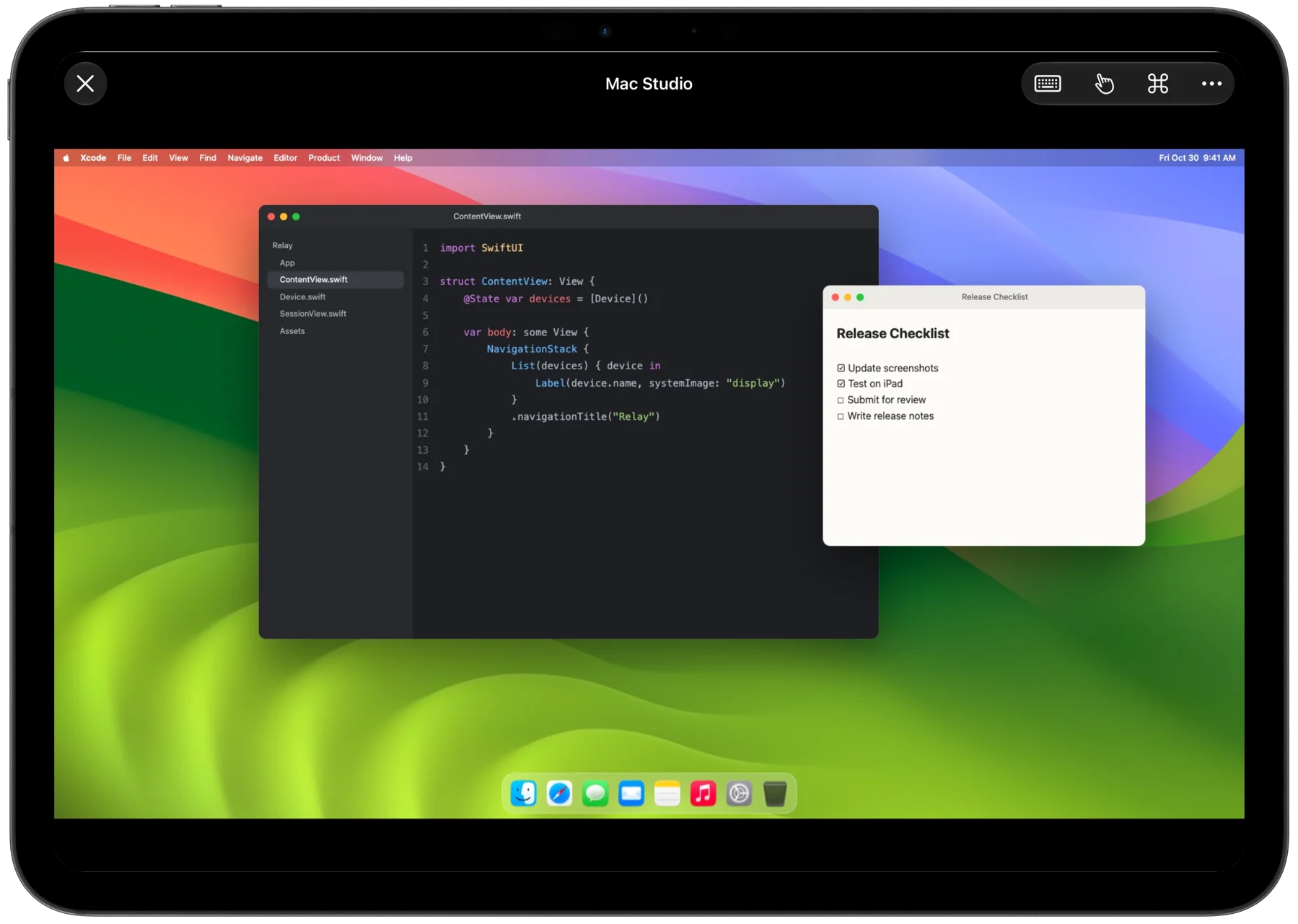
On iPad, use a trackpad or mouse like you're at the desk, and send the picture to a TV or monitor. On Mac, every KVM gets its own window and menu bar commands.
Relay adapts to every size: a full desk on a 5K display, two big columns of screens on iPhone Duo, and a pocket remote on iPhone.
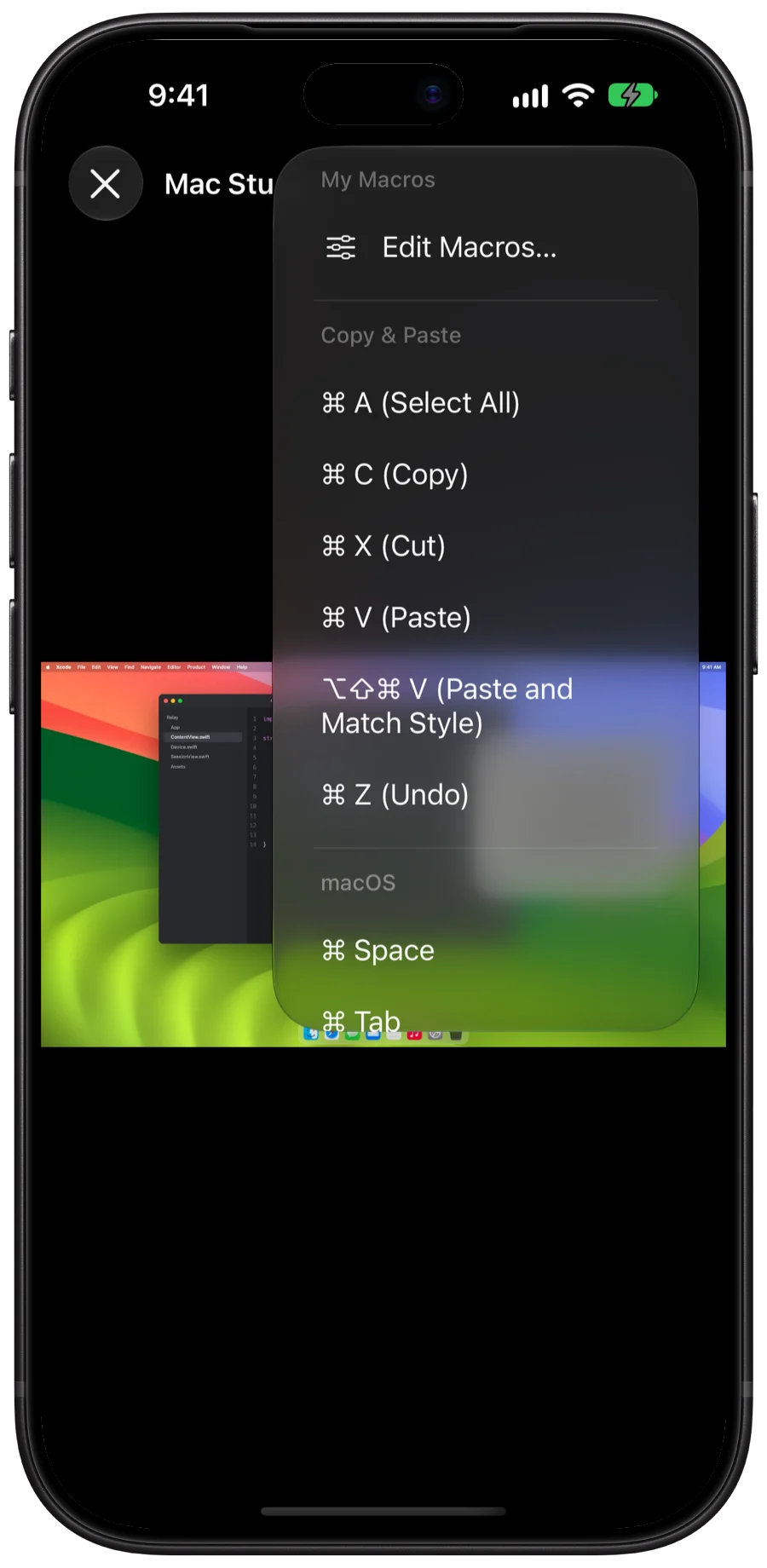
Relay recognizes the operating system on the screen and shows the shortcuts that work there, so copy and paste just works.
 Linux
Android
iOS
Linux
Android
iOS
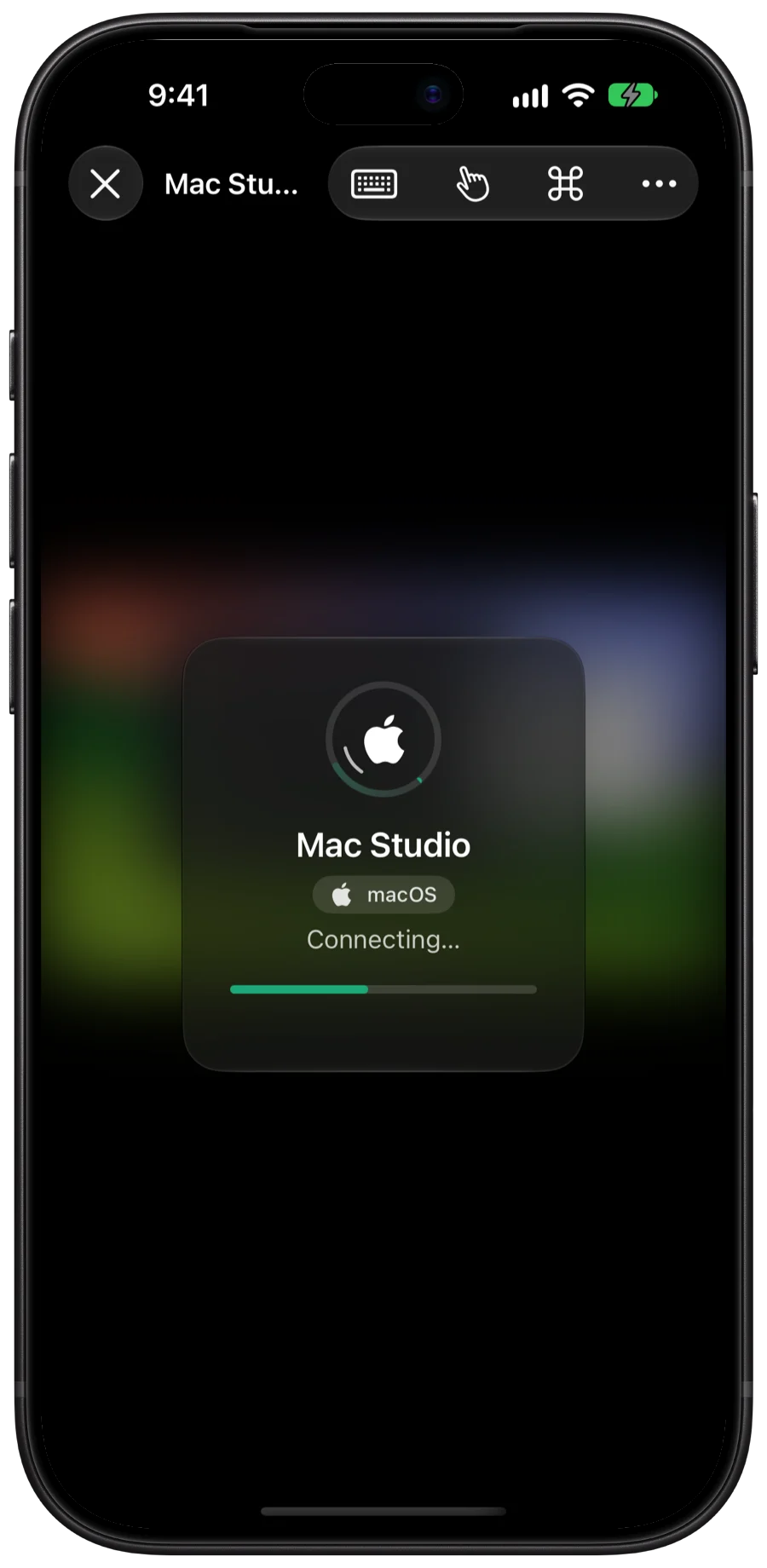
Add a KVM by its address, or let Relay find it on your network. Relay picks the fastest way to reach it, and reconnects on its own when your connection drops.
Relay is free with one KVM. Start a free 7-day trial to try every Pro feature, then keep the free version or buy Relay Pro once. The trial costs nothing and ends on its own.
$0
$19.99 one time
One purchase for iPhone, iPad and Mac, shared with your family. No subscription.
Relay connects straight from your device to your KVMs. No accounts, no analytics, no ads, no servers in between. Screen reading and problem spotting happen on your device.
GL.iNet Comet KVMs running GL.iNet's KVM firmware. Relay talks to the KVM directly, the same way its web interface does.
No. The KVM connects to the computer's HDMI and USB ports, so Relay works with any computer, even in the BIOS or when the operating system won't start.
Yes. Connect over a VPN such as Tailscale or WireGuard, or through a Cloudflare Tunnel or other HTTPS address you've set up for the KVM.
No. Relay is an independent app and isn't affiliated with GL.iNet.
Relay is free to download, with every feature free for 7 days. The free version keeps one KVM with video, keyboard, mouse and power. Relay Pro is a one-time $19.99 purchase that works on iPhone, iPad and Mac and is shared with your family.
Relay is in testing now and coming soon to the App Store for iPhone, iPad and Mac.
Loading…
Loading…
Help with setting up and using Relay.
Tap + and choose Find KVMs on This Network, or enter the address you use for the KVM's web interface: its LAN address, VPN address, or tunnel URL. Sign in with the KVM's own username and password.
KVMs reached by IP address use a self-signed certificate. Turn on Allow Self-Signed Certificate for that KVM; Relay remembers the certificate the first time and refuses a different one later.
Reach the KVM over a VPN, such as Tailscale or WireGuard, or through an HTTPS address such as a Cloudflare Tunnel. Relay uses WebRTC when it can and falls back to H.264 over WebSocket, which works through tunnels.
Set the computer's operating system in the KVM's settings, or let Relay recognize it. The Shortcuts menu then shows the right shortcuts, and on Windows, Linux and Android ⌘ on your keyboard acts as Ctrl.
Open a session, tap … and choose Virtual Media. Upload an ISO or IMG file, or download one from a link straight to the KVM. Select it, connect the drive, then choose it in the computer's boot menu.
Email support@relaykvm.app. Include your device, the KVM's firmware version and what you see, and leave out passwords.